
This is modified, alternative tabbed extension for well known urxvt-unicode terminal emulator
Features
Possibility to add named tabs, through the X resources, which represents its class. Without any configuration only default shell class is available under default (Shift+Down) shortcut.
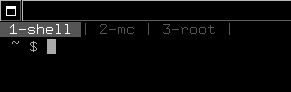
Fast navigation to first ten tabs (if available) with shortcut Ctrl+[num], where num can be 0 to 9. CTRL+0 will switch to tenth tab.
Numbers in tabs can be switched off in by setting resource:URxvt.tabbedalt.tab-numbers: false
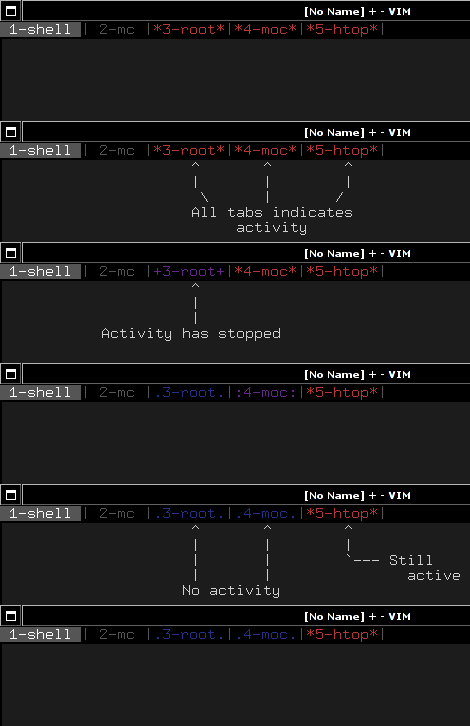
Integrated activity indicator with additional features like colors and different characters instead of simply asterisk depending on time.
Integrated tab renaming from stepb. Default under Shift+UP, then type some text and press RETURN for accept or ESC for cancel.
Added ability to configure own shortcuts using standard keysym urxvt option. See below for examples.


Installation
Copy tabbedalt into ~/.urxvt/ext directory.
Add these to your ~/.Xdefaults:
! Perl extension config
URxvt.perl-ext: tabbedalt
And that's it. On some systems, there might be a need to reload X resources:
$ xrdb ~/.XdefaultsFor quickinstall and run urxvt, tabbedalt can be installed using following command:
$ curl --create-dirs https://raw.githubusercontent.com/gryf/tabbedalt/master/tabbedalt -o ~/.urxvt/ext/tabbedalt
$ urxvt -pe tabbedalt
or even without "installing" at all:
$ curl https://raw.githubusercontent.com/gryf/tabbedalt/master/tabbedalt -o /tmp/tabbedalt
$ URXVT_PERL_LIB=/tmp urxvt -pe tabbedalt
Configure
There are several additional things you can set contrary to the original tabbed extension.
Colors
You can change all of the colors regarding tabs appearance. Here are defaults:
URxvt.tabbedalt.tabbar-fg: 15
URxvt.tabbedalt.tabbar-bg: 8
URxvt.tabbedalt.tab-fg: 8
URxvt.tabbedalt.tab-bg: 0
URxvt.tabbedalt.active-fg: 1
URxvt.tabbedalt.actives-fg: 5
URxvt.tabbedalt.actived-fg: 4
Tab activity
Tabs can change colors depending on the activity of terminal under certain tab. Colors can be defined as described in section above. You can change the time for either group of activity:
URxvt.tabbedalt.tabbar-timeouts: 16:.:8:::4:+
The value can should be read as colon separated fields. In this case it would be read as:
16 with symbol .
8 with symbol :
4 with symbol +
Numeric values means amount of seconds, on which three group of activity will be triggered. Those group are:
Inactive for at least 16 seconds
Inactive for at least 8 seconds
Inactive for at least 4 seconds
Activity of the tab is always represented by asterisk sign (*).
You can change those values but bear in mind, that first group should have timeout in seconds set higher, than middle one. You can also change symbols for those groups.
Tab numbers
You can turn off tab numbers and leave only name of the tab. Handy to save the space:
URxvt.tabbedalt.tab-numbers: false
Actions
There are several actions, which tabbedalt supports:
new_tab - for tab creation
rename_tab - for tab title renaming
prev_tab - for jumping to previous tab
next_tab - for jumping to next tab
move_tab_left - for moving tab to the left
move_tab_right - for moving tab to the right
jump_to_tab - for quickly jumping into first tenth tabs
See next sections for examples. This feature was adapted from tabbedex.
Disable default keystrokes
By setting:
URxvt.tabbedalt.disable-default-keys: false
you can completely remove default keystrokes for creating and navigating tabs. In fact, if this resource is set to true (default), than tabbedalt will create several keysyms mapped to the actions:
Shift-Down: new_tab - create tab
Shift-Up: rename_tab - for tab title renaming
Shift-Left: prev_tab - for jumping to previous tab
Shift-Right: next_tab - for jumping to next tab
Shift-Left: move_tab_left - for moving tab to the left
Control-Right: move_tab_right - for moving tab to the right
Control-1..0: jump_to_tab - for quickly jumping into first tenth tabs
It might be wise to define own shortcuts before disabling default keys.
new_tab
This action can have up to two arguments separated by colon, in a form:
URxvt.keysym.desired-keys: tabbedalt:new_tab:tab-title:tab-command
In this case for desired-keys shortcut there would be new tab created with title set to tab-title, and command which tab run as tab-command, for example:
URxvt.keysym.Control-t: tabbedalt:new_tab:htop:htop
where pressing control+t it will run new tab with title htop and command htop.
Both title and command may be omitted. If so, default title shell will be used in absence of title, and default shell will be run on missing command.
jump_to_tab
In this action, there is only one argument expected - number of the tab, i.e.:
URxvt.keysym.Control-1: tabbedalt:jump_to_tab:0
URxvt.keysym.Control-2: tabbedalt:jump_to_tab:1
…
URxvt.keysym.Control-0: tabbedalt:jump_to_tab:9
Note, that tabs are indexed from 0.
The rest
Al the rest of the actions (moving, jumping and renaming) are without argument. For example renaming will look like this:
URxvt.keysym.Control-r: tabbedalt:rename_tab
Creating custom classes
Let's assume, that one want to add three kind of custom shells:
simple one (default shell in the system),
midnight commander,
root (namely - su command)
A way to do this is to associate keystroke for it in .Xdefaults using urxvts keysym option, and the actions described above:
URxvt.keysym.Control-Shift-N: tabbedalt.new_tab:shell
URxvt.keysym.Control-Shift-R: tabbedalt.new_tab:root:su -
URxvt.keysym.Control-Shift-M: tabbedalt.new_tab:mc:mc
Resource values are colon separated values, which are in order:
plugin name, which in case of this very plugin would be always tabbedalt.
title of the tab, it could be anything but the colon.
optional command. If omitted, default shell will be launched.
Renaming tabs
On runtime, tabs can be renamed using (by default) Shift+Up - now you can type name for the tab. Return accept change, ESC cancels it. This feature was taken from stepb tabbedx repository.